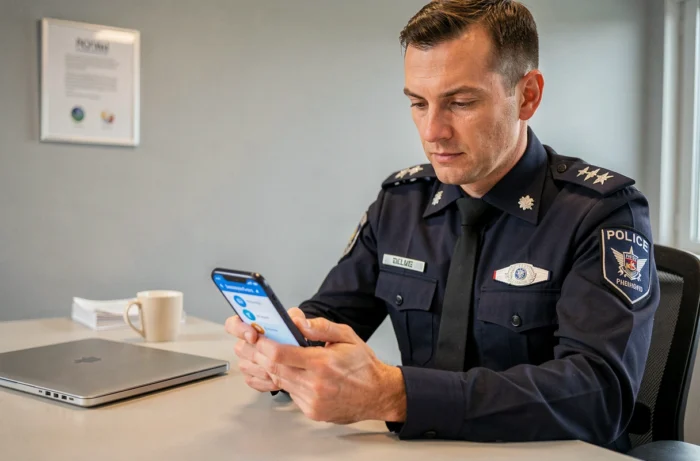
The eCampus Police national platform centralizes the ongoing training of agents on a Moodle portal accessible from any connected workstation. In the field, the issue of mobile access arises with specific technical constraints: SSO authentication, compatibility of SCORM modules on small screens, and the inability to use the standard Moodle Mobile application. Here’s what field feedback and technical documentation allow us to establish.
CALYPSSO Authentication: the Technical Lock Before Any Training
Unlike a standard Moodle where one creates an account directly on the platform, eCampus Police redirects all logins to the CALYPSSO portal (auth.sso.police.interieur.gouv.fr). This single sign-on (SSO) authentication system simultaneously manages professional messaging, the intranet, and HR tools. Changing one’s password on CALYPSSO thus impacts all of these services.
This architecture has a direct consequence for agents trying to log in to eCampus Police national from a personal device or a service phone: resetting a forgotten password or unlocking an account never happens on eCampus itself. One must go through CALYPSSO or contact the CNAU (National User Support Center) in case of persistent blockage.
This point may seem trivial, but it generates a significant portion of the access difficulties reported by agents. A police officer on the move who loses their password cannot reset it from the eCampus login page. The procedure requires returning to the SSO portal, which assumes knowing the exact address or having intranet access.
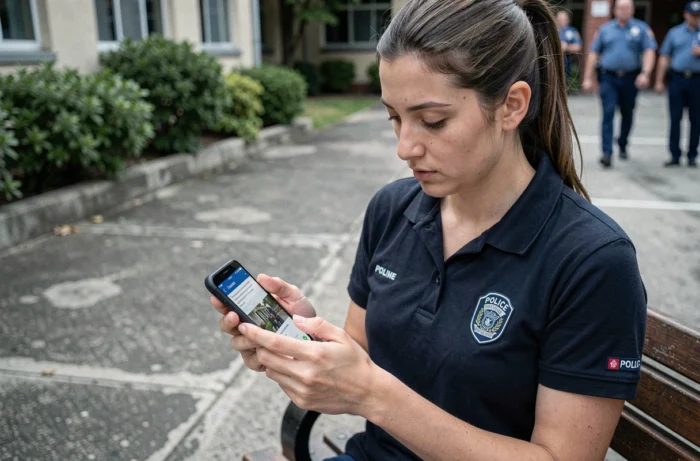
Mobile Access to eCampus Police: Browser Required, Moodle App Unusable
The Moodle Mobile app, available on iOS and Android, seems to be the natural reflex for following Moodle courses on a phone. On eCampus Police, this application does not function properly. The redirection to CALYPSSO interrupts the transmission of the authentication token to the app, blocking access to courses after the login page.
The only reliable method to access the platform from a smartphone or tablet remains the mobile browser (Safari on iPhone, Chrome on Android). The connection goes through the CALYPSSO page in the browser, then redirects to the eCampus interface once authentication is validated.
Display Limitations on Small Screens
Some educational content poses problems on mobile. SCORM modules, a standard format used for interactive courses, display poorly on smartphone screens. Navigation buttons may fall out of view, and embedded videos do not always adapt to the screen width.
- SCORM modules sometimes require horizontal scrolling, making progress in the course cumbersome on a screen smaller than six inches
- Videos embedded in certain courses do not automatically switch to adaptive full-screen mode, forcing the agent to zoom manually
- Downloading certificates in PDF works via the mobile browser, but the layout may be truncated depending on the PDF reader used
Following a complete module on a smartphone remains possible, but uncomfortable for interactive content. A tablet offers a more manageable compromise for extended training sessions.
Training Modules and Progress Tracking on eCampus Police
The platform offers tailored pathways based on the agent’s rank, specialty, and assignment. The areas covered range from cybersecurity to crisis management, including management and investigative techniques. Each validated module generates a certificate integrated into the agent’s professional file.
Progress tracking is individualized: the interface displays started modules, scores obtained, and remaining trainings to complete. This dashboard works on both desktop and mobile browsers, although readability on small screens requires more scrolling.
Network Constraints in the Field
An agent on a mission or traveling does not always have access to a stable network. However, eCampus does not offer a native offline mode. Each interaction with a module (answering a quiz, watching a video, validating a step) requires an active connection.
No content can be downloaded for offline viewing directly from the platform. Some agents circumvent this limitation by saving PDF certificates or downloadable course materials when they have a connection, but interactive modules remain inaccessible without a network.
Data Security and Privacy on a Personal Device
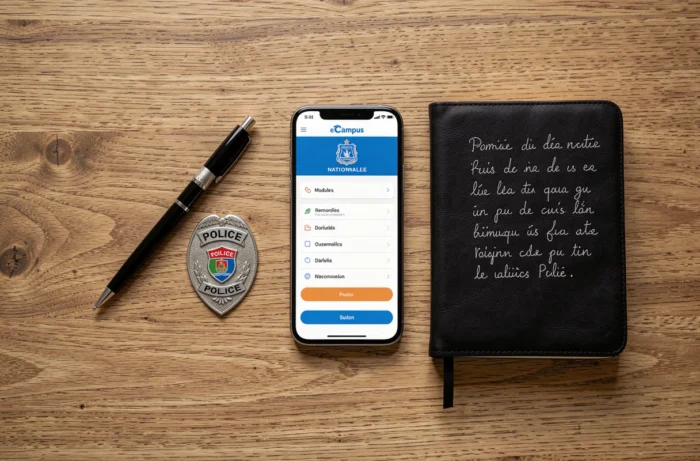
Using a personal smartphone to access eCampus Police raises questions about the security of professional data. The passage through CALYPSSO implies that a session token is temporarily stored in the browser. On a shared or inadequately protected device, this token could theoretically be exploited.
Basic recommendations apply: locking the device with a code or biometrics, systematically logging out after each session, using an up-to-date browser. The platform itself does not store sensitive data related to ongoing investigations, but profile information (rank, assignment, training history) constitutes protected personal data.
- Always log out of CALYPSSO after a session on a personal device, as the SSO session grants access to all internal services
- Avoid unsecured public Wi-Fi networks to access the platform
- Ensure that the mobile browser does not save credentials in autofill on a shared phone
Field feedback varies on the actual ease of mobile use on a daily basis. The platform technically works via the browser, but the experience lags behind that of a dedicated app optimized for touch. For agents who need to validate modules between two interventions, a tablet with 4G connectivity remains the most reliable option.